> ## Documentation Index
> Fetch the complete documentation index at: https://docs.reclaimtime.com/llms.txt
> Use this file to discover all available pages before exploring further.
# Accounts and the Workforce page
> Creating and editing users, what each field does, and what Last Login actually means for each role.
**Workforce** is the account list. The group tree is on the left, the people on the right, and the two work together: click a group to see the people in it, or **All Users** for everyone in the organisation.
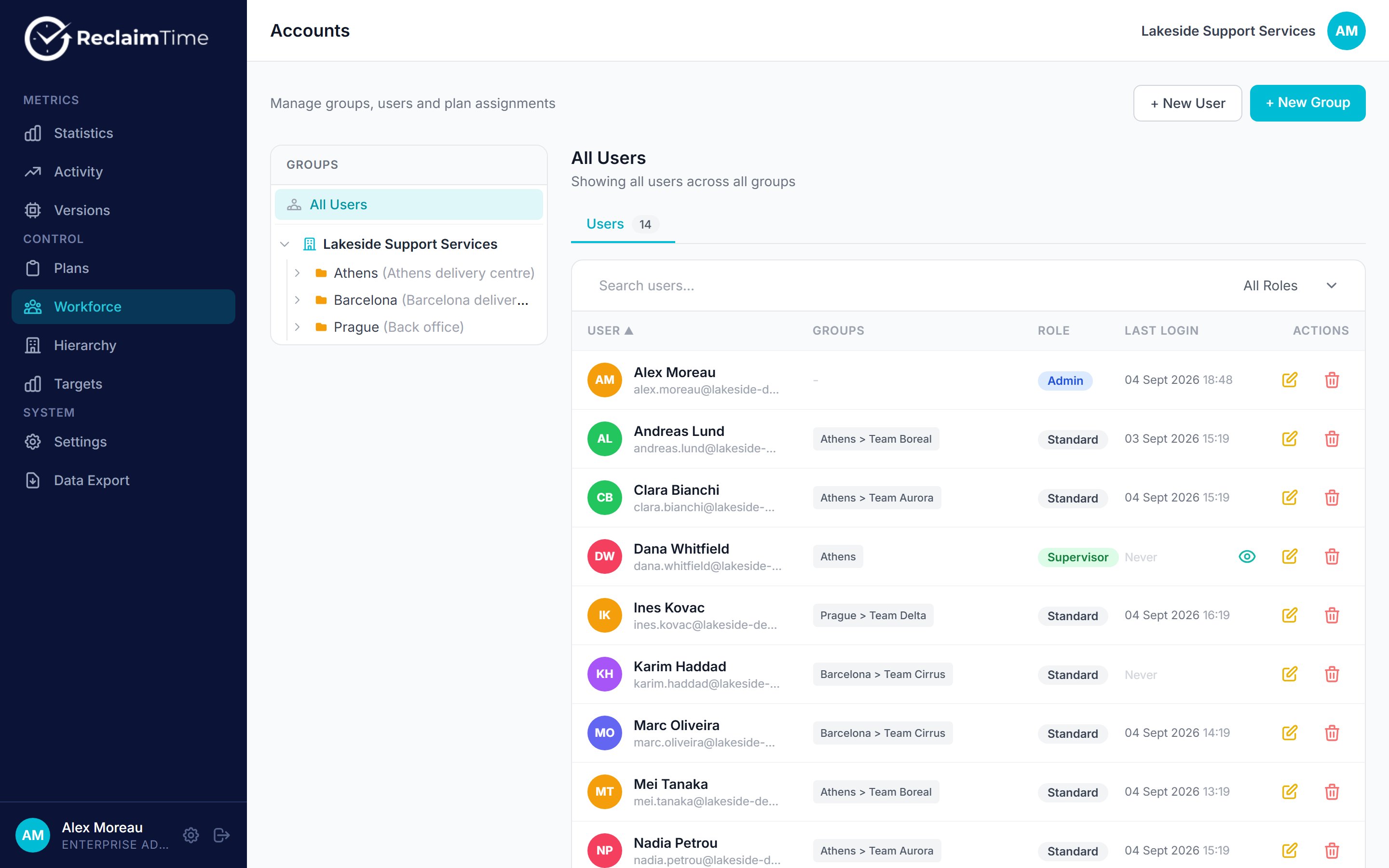 Search matches on name, email and username. The **All Roles** dropdown filters by role. The icons on each row are, in order, simulate (supervisors and admins only), edit and delete.
## Creating a user
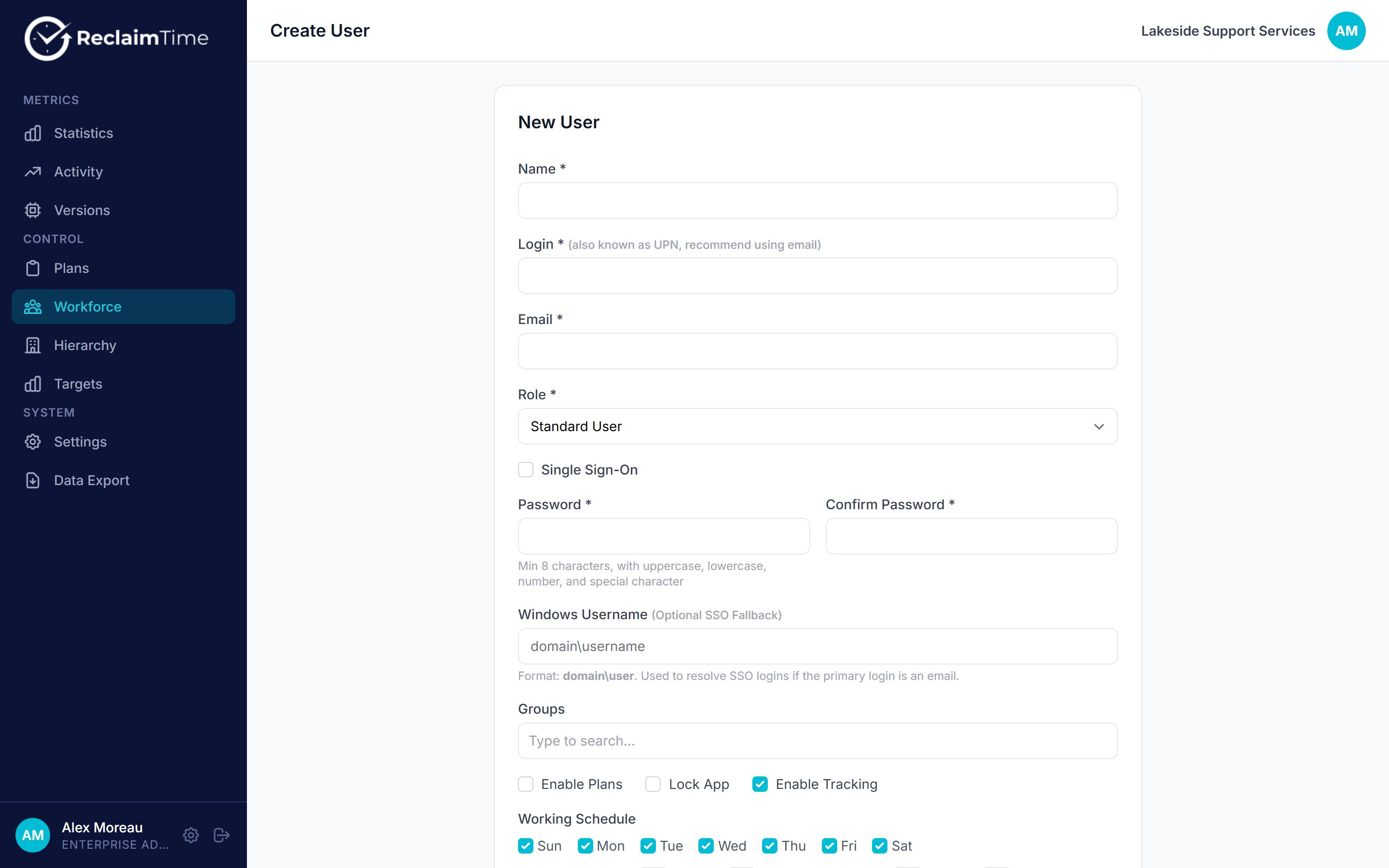
**+ New User** opens the form. Set **Role** first, because it decides which of the remaining fields apply.
Search matches on name, email and username. The **All Roles** dropdown filters by role. The icons on each row are, in order, simulate (supervisors and admins only), edit and delete.
## Creating a user
**+ New User** opens the form. Set **Role** first, because it decides which of the remaining fields apply.
 | Field | What to put in it |
| -------------------- | ----------------------------------------------------------------------------------------------------------------------------------------------------------------------- |
| **Name** | The person's display name. This is what appears everywhere in the dashboard. |
| **Login** | The identifier the client will match on. Use the person's UPN, which is normally their email address. |
| **Email** | Their email address. Used for update emails and for the sign-in of supervisors and admins. |
| **Role** | See [Roles and permissions](/admin/roles). |
| **Single Sign-On** | Tick for every tracked employee. Without it the client cannot sign them in. |
| **Password** | Only when single sign-on is off. Minimum 8 characters for a standard user, 12 for a supervisor or admin, with upper case, lower case, a number and a special character. |
| **Windows Username** | Optional fallback in `domain\user` form, for machines where Windows does not report a UPN. |
| **Groups** | Which team the person belongs to. Drives every supervisor's scope and the group name on their activity. |
| **Enable Plans** | Whether the client applies blocking plans for this person. Off unless you use blocking. |
| **Lock App** | Whether the client interface is hidden from the employee. On for tracked employees. |
| **Enable Tracking** | Whether the client uploads activity at all. On for tracked employees. |
| **Working Schedule** | The days and hours during which activity is recorded. Defaults come from the organisation. |
**Single Sign-On must be ticked** for a tracked employee. The backend only returns accounts with it enabled, so an account that is otherwise perfect will report "User not provisioned" on the machine until it is set. This is the most common cause of a new starter who never appears.
After creating the account, nothing else is needed. The client on the person's machine retries every five minutes and signs itself in. See [First login and SSO](/first-login).
## Fields that only apply to standard users
Single sign-on, Windows username, Enable Plans, Lock App, Enable Tracking and the Working Schedule describe how the desktop client should behave. A supervisor or admin account is a dashboard login, so those fields are hidden when you pick those roles. Do not go looking for them.
Supervisors and admins get one field standard users do not: **Require password change on first login**, which forces a change at their next sign-in.
## Working schedule
Activity is only recorded inside the working schedule. Outside it the client records nothing at all, which is deliberate: it keeps evenings and weekends out of the data entirely rather than collecting them and filtering later.
The organisation default is set in [Settings](/admin/settings). Override it on a person only when their hours genuinely differ, for example a different shift, and remember that a wrong schedule looks exactly like a broken client: no data, no error.
## Turning tracking off
**Enable Tracking** off means the client keeps running but uploads nothing. This is the supported way to stop tracking somebody, for instance a senior manager, without uninstalling. See [Uninstall](/uninstall) for why it is usually the better choice.
## Last Login
The column means different things by role, which surprises people:
| Role | Last Login shows |
| ----------------------------------------- | ------------------------------------------------- |
| Standard | The last time their **desktop client** signed in |
| Supervisor, Enterprise Admin, Super Admin | The last time they signed in to the **dashboard** |
So a blank Last Login on a standard user means their client has never signed in, and on a supervisor it means they have never opened the dashboard. Both are worth knowing, but they are not the same fact.
## Deleting a user
Delete removes the account. It does not remove the activity already recorded against them, and it does not uninstall anything from their machine. For somebody who has left, delete the account **and** make sure the client is removed or the machine is reissued, otherwise it keeps trying to sign in every five minutes.
## Related tasks
* [Add a new starter](/guides/add-a-new-starter)
* [Someone has left](/guides/someone-has-left)
* [Stop tracking someone](/guides/stop-tracking-someone)
***
*Checked against ReclaimTime client 8.0.0.9 and dashboard V3 on 5 September 2026.*
| Field | What to put in it |
| -------------------- | ----------------------------------------------------------------------------------------------------------------------------------------------------------------------- |
| **Name** | The person's display name. This is what appears everywhere in the dashboard. |
| **Login** | The identifier the client will match on. Use the person's UPN, which is normally their email address. |
| **Email** | Their email address. Used for update emails and for the sign-in of supervisors and admins. |
| **Role** | See [Roles and permissions](/admin/roles). |
| **Single Sign-On** | Tick for every tracked employee. Without it the client cannot sign them in. |
| **Password** | Only when single sign-on is off. Minimum 8 characters for a standard user, 12 for a supervisor or admin, with upper case, lower case, a number and a special character. |
| **Windows Username** | Optional fallback in `domain\user` form, for machines where Windows does not report a UPN. |
| **Groups** | Which team the person belongs to. Drives every supervisor's scope and the group name on their activity. |
| **Enable Plans** | Whether the client applies blocking plans for this person. Off unless you use blocking. |
| **Lock App** | Whether the client interface is hidden from the employee. On for tracked employees. |
| **Enable Tracking** | Whether the client uploads activity at all. On for tracked employees. |
| **Working Schedule** | The days and hours during which activity is recorded. Defaults come from the organisation. |
**Single Sign-On must be ticked** for a tracked employee. The backend only returns accounts with it enabled, so an account that is otherwise perfect will report "User not provisioned" on the machine until it is set. This is the most common cause of a new starter who never appears.
After creating the account, nothing else is needed. The client on the person's machine retries every five minutes and signs itself in. See [First login and SSO](/first-login).
## Fields that only apply to standard users
Single sign-on, Windows username, Enable Plans, Lock App, Enable Tracking and the Working Schedule describe how the desktop client should behave. A supervisor or admin account is a dashboard login, so those fields are hidden when you pick those roles. Do not go looking for them.
Supervisors and admins get one field standard users do not: **Require password change on first login**, which forces a change at their next sign-in.
## Working schedule
Activity is only recorded inside the working schedule. Outside it the client records nothing at all, which is deliberate: it keeps evenings and weekends out of the data entirely rather than collecting them and filtering later.
The organisation default is set in [Settings](/admin/settings). Override it on a person only when their hours genuinely differ, for example a different shift, and remember that a wrong schedule looks exactly like a broken client: no data, no error.
## Turning tracking off
**Enable Tracking** off means the client keeps running but uploads nothing. This is the supported way to stop tracking somebody, for instance a senior manager, without uninstalling. See [Uninstall](/uninstall) for why it is usually the better choice.
## Last Login
The column means different things by role, which surprises people:
| Role | Last Login shows |
| ----------------------------------------- | ------------------------------------------------- |
| Standard | The last time their **desktop client** signed in |
| Supervisor, Enterprise Admin, Super Admin | The last time they signed in to the **dashboard** |
So a blank Last Login on a standard user means their client has never signed in, and on a supervisor it means they have never opened the dashboard. Both are worth knowing, but they are not the same fact.
## Deleting a user
Delete removes the account. It does not remove the activity already recorded against them, and it does not uninstall anything from their machine. For somebody who has left, delete the account **and** make sure the client is removed or the machine is reissued, otherwise it keeps trying to sign in every five minutes.
## Related tasks
* [Add a new starter](/guides/add-a-new-starter)
* [Someone has left](/guides/someone-has-left)
* [Stop tracking someone](/guides/stop-tracking-someone)
***
*Checked against ReclaimTime client 8.0.0.9 and dashboard V3 on 5 September 2026.*