> ## Documentation Index
> Fetch the complete documentation index at: https://docs.reclaimtime.com/llms.txt
> Use this file to discover all available pages before exploring further.
# Groups
> Creating, renaming, describing, moving and deleting groups, and assigning a plan to one.
Groups are how ReclaimTime knows who belongs to which team. They drive what every supervisor can see, the group column on every activity row, and the group filter on every report.
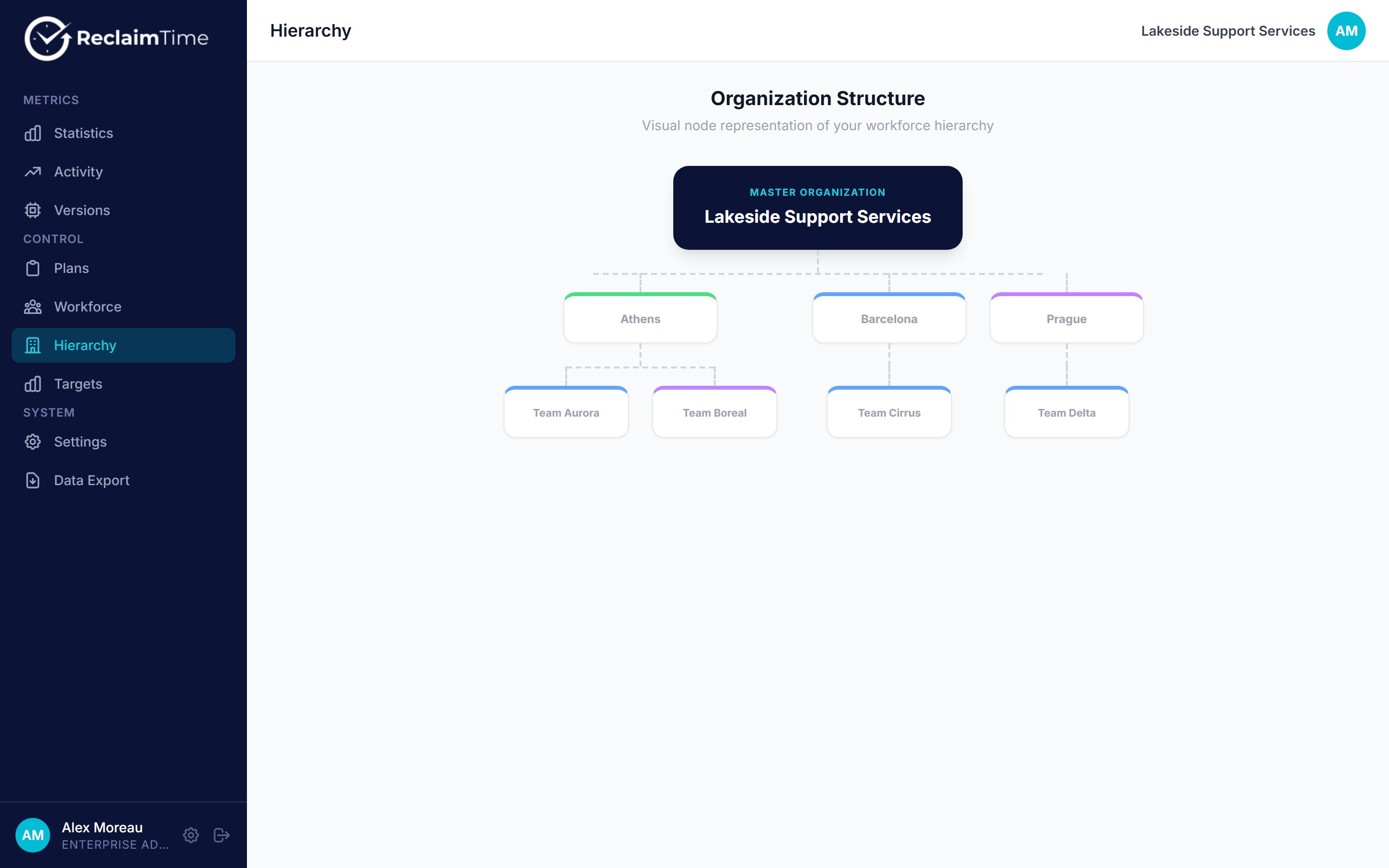
They nest. A typical shape is site, then team:
```
Lakeside Support Services
├── Athens
│ ├── Team Aurora
│ └── Team Boreal
├── Barcelona
│ └── Team Cirrus
└── Prague
└── Team Delta
```
Everything to do with groups lives on **Workforce**, in the tree on the left. **Hierarchy** shows the same structure as an organisation chart, which is easier to read once you have more than a dozen groups.
 ## Creating a group
Click a group in the tree first, then **+ New Group**. The one you clicked becomes the parent, and there is a dropdown on the form to change it. Click the organisation at the top of the tree to create a top-level group.
A group has a **name** and a **description**. Both are worth filling in.
The description shows in brackets after the group name throughout the dashboard, so it is a good place for the supervisor's name. A tree that reads **Team Aurora (Tier 1 support, Dana Whitfield)** answers "who runs this team" without anyone having to ask.
## Editing and moving
Select a group in the tree and its panel opens on the right, with **Edit Group** and **Delete Group**.
## Creating a group
Click a group in the tree first, then **+ New Group**. The one you clicked becomes the parent, and there is a dropdown on the form to change it. Click the organisation at the top of the tree to create a top-level group.
A group has a **name** and a **description**. Both are worth filling in.
The description shows in brackets after the group name throughout the dashboard, so it is a good place for the supervisor's name. A tree that reads **Team Aurora (Tier 1 support, Dana Whitfield)** answers "who runs this team" without anyone having to ask.
## Editing and moving
Select a group in the tree and its panel opens on the right, with **Edit Group** and **Delete Group**.
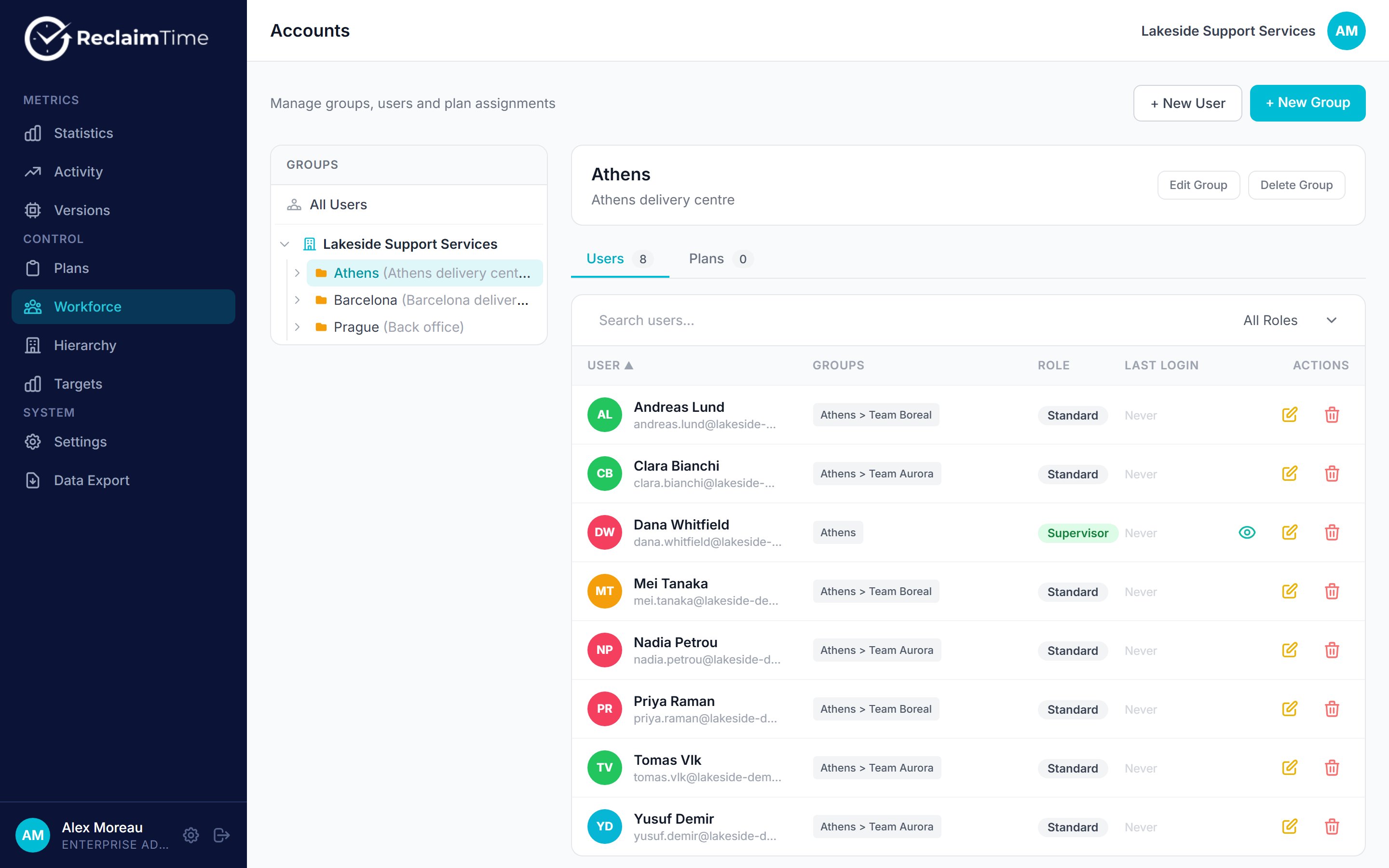 **Edit Group** changes the name and description. **Move** changes its parent: every group underneath it and every user assignment follows automatically, so reorganising a site is one action rather than a rebuild.
Renaming a group does not rewrite the group name already stamped on historic activity rows. New activity carries the new name, old rows keep the old one. If you rename a team, expect both names to appear in reports that span the change.
From client 8.0 the new name reaches activity as soon as each machine next signs in. See [Groups and hierarchy](/concepts/groups-and-hierarchy).
## Deleting
**Delete Group** removes the group. Move the people out first, and be aware that any supervisor scoped to it will see nothing afterwards until you reassign them.
## Assigning a plan
The **Plans** tab on the group panel assigns a blocking plan to the group. The desktop client asks for the plans that apply to its user's groups and enforces them.
Blocking is optional and separate from tracking. Most organisations use ReclaimTime for tracking alone and never assign a plan. See [Plans for groups](/concepts/plans-for-groups).
## How groups reach the data
When the client uploads a session it stamps the person's groups onto the row. This is why:
* Moving somebody between teams changes their new activity, not their old activity. Their history stays with the team they were in at the time, which is usually what you want for a report.
* Anonymised rows, the ones for non-work sites, carry the group but no name. That is what makes team-level totals possible without attributing personal browsing to anyone.
## Related tasks
* [Add a new starter](/guides/add-a-new-starter)
***
*Checked against ReclaimTime client 8.0.0.9 and dashboard V3 on 5 September 2026.*
**Edit Group** changes the name and description. **Move** changes its parent: every group underneath it and every user assignment follows automatically, so reorganising a site is one action rather than a rebuild.
Renaming a group does not rewrite the group name already stamped on historic activity rows. New activity carries the new name, old rows keep the old one. If you rename a team, expect both names to appear in reports that span the change.
From client 8.0 the new name reaches activity as soon as each machine next signs in. See [Groups and hierarchy](/concepts/groups-and-hierarchy).
## Deleting
**Delete Group** removes the group. Move the people out first, and be aware that any supervisor scoped to it will see nothing afterwards until you reassign them.
## Assigning a plan
The **Plans** tab on the group panel assigns a blocking plan to the group. The desktop client asks for the plans that apply to its user's groups and enforces them.
Blocking is optional and separate from tracking. Most organisations use ReclaimTime for tracking alone and never assign a plan. See [Plans for groups](/concepts/plans-for-groups).
## How groups reach the data
When the client uploads a session it stamps the person's groups onto the row. This is why:
* Moving somebody between teams changes their new activity, not their old activity. Their history stays with the team they were in at the time, which is usually what you want for a report.
* Anonymised rows, the ones for non-work sites, carry the group but no name. That is what makes team-level totals possible without attributing personal browsing to anyone.
## Related tasks
* [Add a new starter](/guides/add-a-new-starter)
***
*Checked against ReclaimTime client 8.0.0.9 and dashboard V3 on 5 September 2026.*