> ## Documentation Index
> Fetch the complete documentation index at: https://docs.reclaimtime.com/llms.txt
> Use this file to discover all available pages before exploring further.
# Supervisor guide
> Everything a team supervisor needs: sign in, read your team's week, spot who is not reporting, and export the list.
This page is the whole job. It takes about five minutes to read, and you only need it once.
There is a one-page version of everything below, as a PDF, for printing or forwarding: [ReclaimTime for supervisors](/guides/reclaimtime-supervisor-one-page.pdf).
## Sign in
Go to your organisation's ReclaimTime address and sign in with your work email address and the password you were sent.
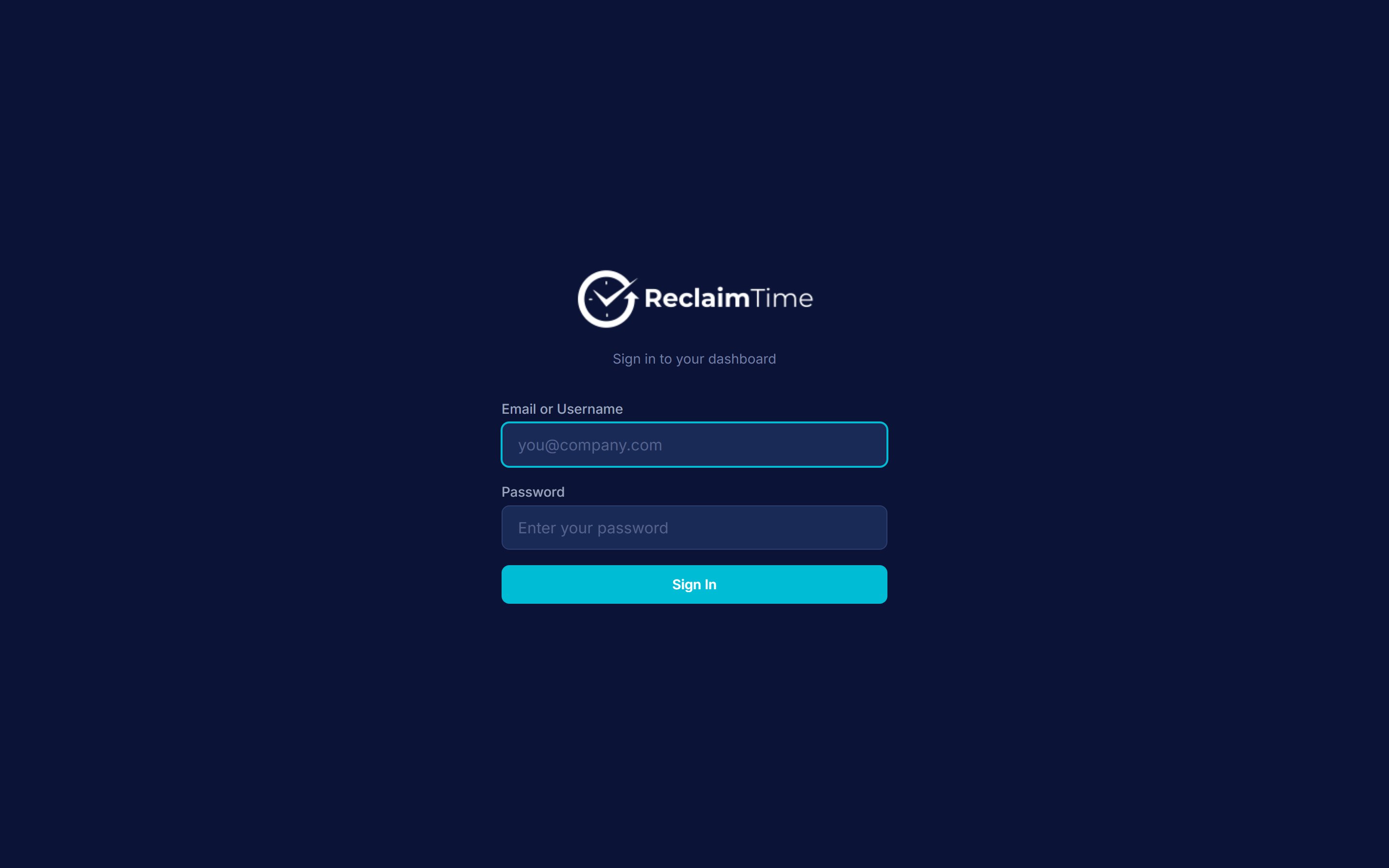 If you were asked to change your password on first sign-in, do that and carry on. If you have forgotten it, ask your ReclaimTime administrator to reset it. There is no self-service reset.
You see only the groups you have been assigned to. If a team you expect is missing, that is a group assignment on your account, not a permission you can change yourself. Ask your administrator.
## Your team this week
**Statistics** is the page you will use most. Pick a date range and it loads.
If you were asked to change your password on first sign-in, do that and carry on. If you have forgotten it, ask your ReclaimTime administrator to reset it. There is no self-service reset.
You see only the groups you have been assigned to. If a team you expect is missing, that is a group assignment on your account, not a permission you can change yourself. Ask your administrator.
## Your team this week
**Statistics** is the page you will use most. Pick a date range and it loads.
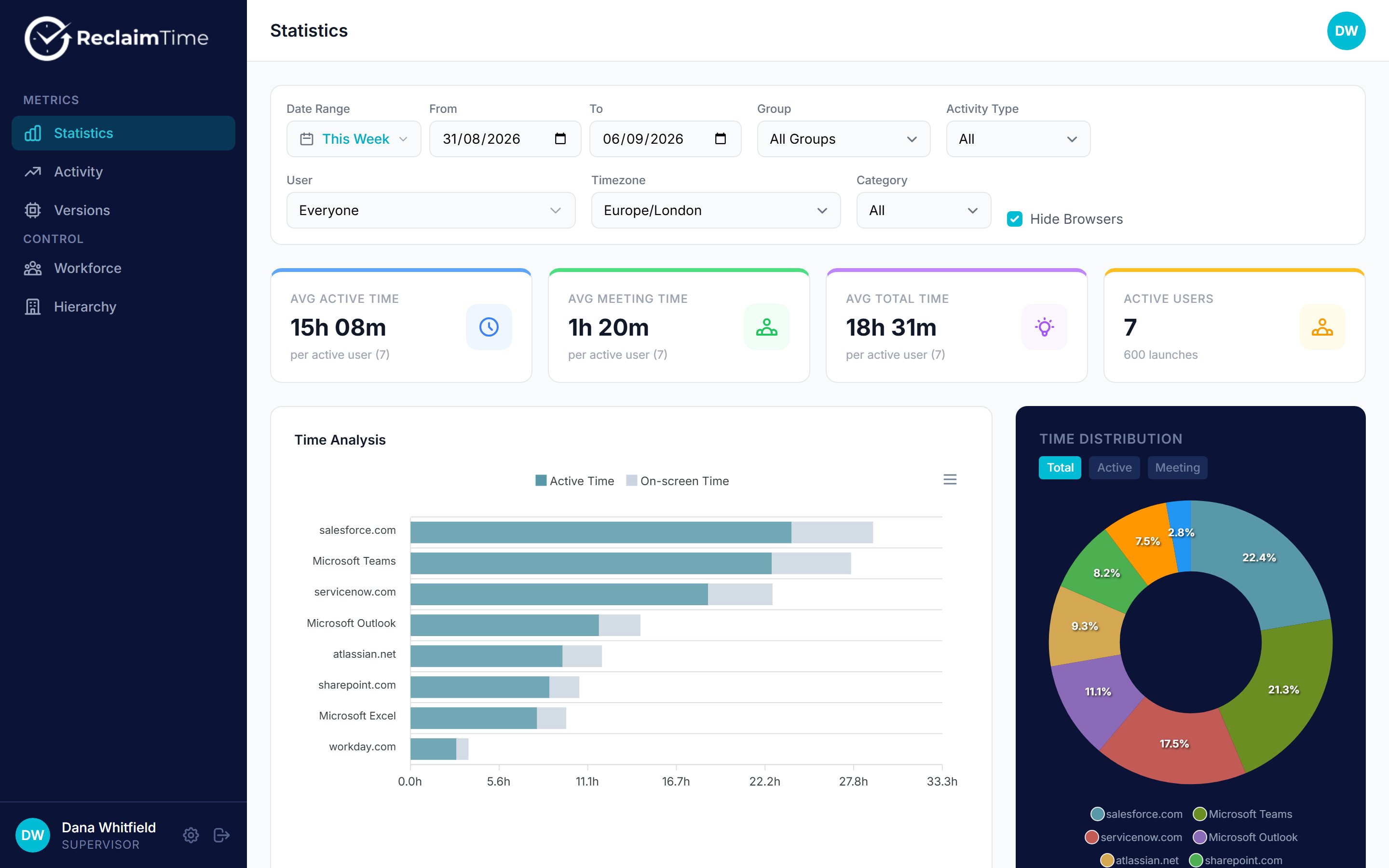 Use the **Date Range** button for a preset. **This Week** and **Last Week** are the two that matter for a normal Monday review.
The four cards across the top are averages per active person, not team totals:
| Card | What it means |
| -------------------- | ------------------------------------------------------------------------------------------------------------------------------------------------------- |
| **Avg active time** | Time with an application in the foreground and the person actually using it. This is the honest "working" number. |
| **Avg meeting time** | Time detected as being in a call or a meeting. Counted separately, and it is also part of active time. |
| **Avg total time** | Active time plus time an application was on screen without being used. Always the largest of the three. |
| **Active users** | How many people in your teams reported anything at all in the period. Compare this with your headcount first, before you read any of the other numbers. |
Below them, **Time Analysis** ranks the applications and websites your teams spent the most time on, and **Time Distribution** shows the same thing as a share of the total.
Read **Active users** before anything else. If it is lower than the number of people in your team, the averages are computed over fewer people than you think, and someone is not reporting. Find them on the Activity page before you draw any conclusion from the rest of the page.
## Who has not sent data
**Activity** answers "is everyone's app working" in one screen. It lists each person with the first and last activity in the period.
Use the **Date Range** button for a preset. **This Week** and **Last Week** are the two that matter for a normal Monday review.
The four cards across the top are averages per active person, not team totals:
| Card | What it means |
| -------------------- | ------------------------------------------------------------------------------------------------------------------------------------------------------- |
| **Avg active time** | Time with an application in the foreground and the person actually using it. This is the honest "working" number. |
| **Avg meeting time** | Time detected as being in a call or a meeting. Counted separately, and it is also part of active time. |
| **Avg total time** | Active time plus time an application was on screen without being used. Always the largest of the three. |
| **Active users** | How many people in your teams reported anything at all in the period. Compare this with your headcount first, before you read any of the other numbers. |
Below them, **Time Analysis** ranks the applications and websites your teams spent the most time on, and **Time Distribution** shows the same thing as a share of the total.
Read **Active users** before anything else. If it is lower than the number of people in your team, the averages are computed over fewer people than you think, and someone is not reporting. Find them on the Activity page before you draw any conclusion from the rest of the page.
## Who has not sent data
**Activity** answers "is everyone's app working" in one screen. It lists each person with the first and last activity in the period.
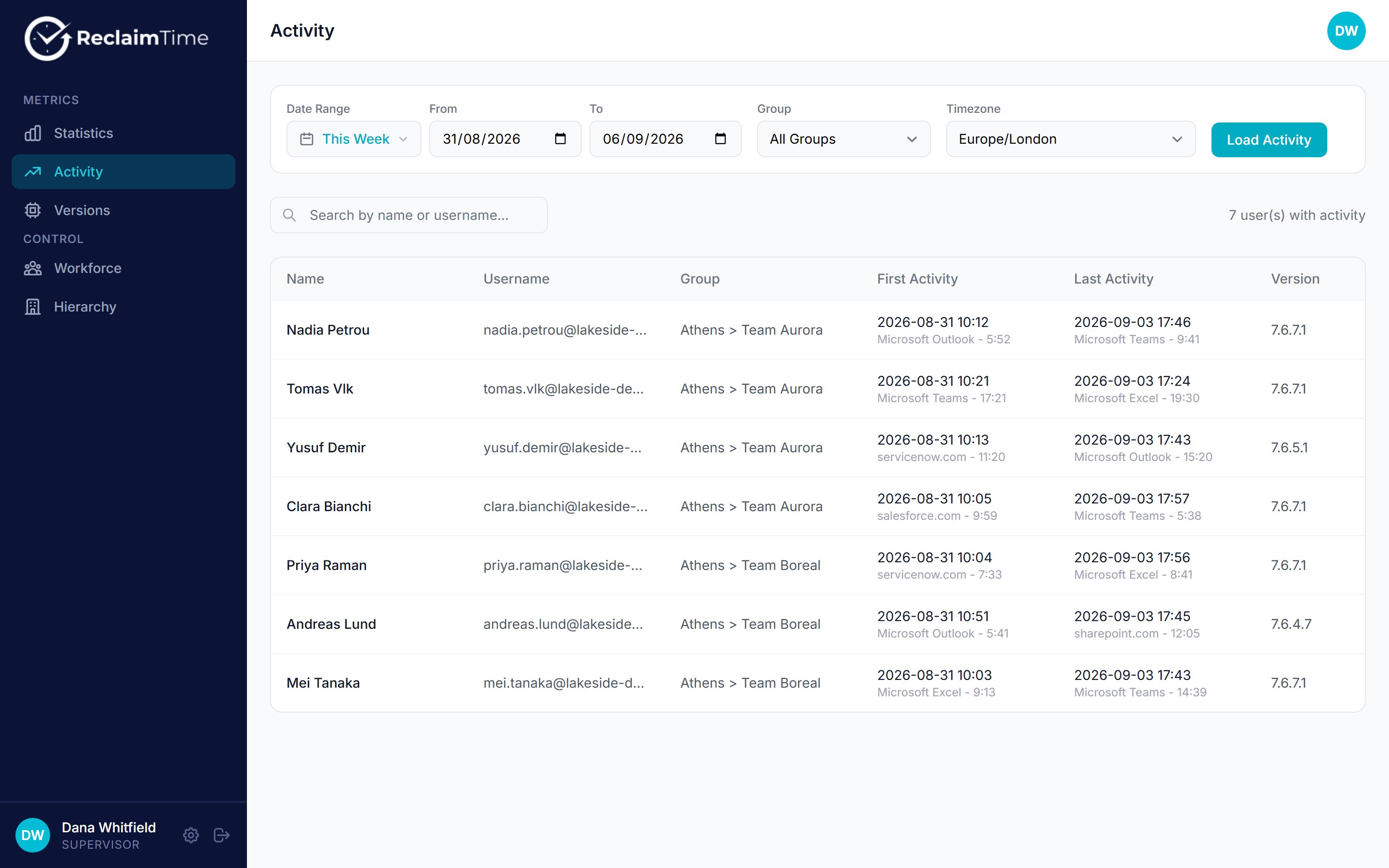 Pick the date range, click **Load Activity**, then read the **Last Activity** column. Anyone missing from this list sent nothing in the period at all.
The usual reasons, in the order they are worth checking:
1. **They were not at work.** Leave, sickness, training.
2. **The machine was replaced** and the client was not installed on the new one.
3. **The client cannot sign in.** The employee sees a dialog on their machine saying single sign-on failed. Ask them for a screenshot of it and send that to your administrator. See [First login and SSO](/first-login).
Data is not instant. The client uploads a session about a minute after it starts and updates it every couple of minutes, and the dashboard hides anything less than 15 minutes old. Somebody who started work 10 minutes ago will not be here yet. Do not chase anyone before lunchtime on the strength of a morning gap.
## Look at one person
On **Statistics**, change **User** from **Everyone** to the person you want. Everything on the page then describes only them, for the same date range.
This is the view for a one to one: what they spent time in, how much of it was meetings, and how that compares with the team average you just looked at.
Time in an application is not performance. A person on complex cases will look slower in the tool than someone closing simple ones, and someone who spends the day on the phone in a softphone that ReclaimTime does not recognise as a meeting will look quiet. Use these numbers to ask a question, never to answer one.
## Get the list out
Two exports, depending on what you need.
| You want | Where | What you get |
| --------------------------------- | ----------------------------------- | ----------------------------------------------------------- |
| Who is active and on what version | **Versions**, then **Download CSV** | One row per person with last seen date and client version |
| The numbers behind the charts | **Statistics**, then the CSV export | The applications and websites table for the current filters |
Both open in Excel. The Versions CSV is the quickest way to answer "who in my team is actually using this", because you can sort it by the last seen column.
## What your team can and cannot see
Worth knowing, because you will be asked.
* The application is normally locked, so there is nothing for an employee to open, no settings and no history to look at.
* It records the application, the website, the window title and how long each was in use. It does not record what was typed, and it does not take screenshots.
* Personal browsing that is not on the organisation's work list is recorded without their name attached, so it counts towards team totals but is not traceable to a person.
* Nothing is recorded outside the working hours set for the organisation or for that person.
The full field by field detail is on [Data collected and not collected](/it/data-collected) if somebody wants to see it in writing.
## Where to get help
| Problem | Who |
| --------------------------------------------------- | --------------------------------------------------------------------------------- |
| I cannot sign in, or a team is missing from my view | Your ReclaimTime administrator |
| One of my team is not reporting | Your administrator, with a screenshot of the dialog on their machine |
| A number looks wrong | Your administrator first, so they can check the person's working hours and groups |
***
*Checked against ReclaimTime client 8.0.0.9 and dashboard V3 on 5 September 2026.*
Pick the date range, click **Load Activity**, then read the **Last Activity** column. Anyone missing from this list sent nothing in the period at all.
The usual reasons, in the order they are worth checking:
1. **They were not at work.** Leave, sickness, training.
2. **The machine was replaced** and the client was not installed on the new one.
3. **The client cannot sign in.** The employee sees a dialog on their machine saying single sign-on failed. Ask them for a screenshot of it and send that to your administrator. See [First login and SSO](/first-login).
Data is not instant. The client uploads a session about a minute after it starts and updates it every couple of minutes, and the dashboard hides anything less than 15 minutes old. Somebody who started work 10 minutes ago will not be here yet. Do not chase anyone before lunchtime on the strength of a morning gap.
## Look at one person
On **Statistics**, change **User** from **Everyone** to the person you want. Everything on the page then describes only them, for the same date range.
This is the view for a one to one: what they spent time in, how much of it was meetings, and how that compares with the team average you just looked at.
Time in an application is not performance. A person on complex cases will look slower in the tool than someone closing simple ones, and someone who spends the day on the phone in a softphone that ReclaimTime does not recognise as a meeting will look quiet. Use these numbers to ask a question, never to answer one.
## Get the list out
Two exports, depending on what you need.
| You want | Where | What you get |
| --------------------------------- | ----------------------------------- | ----------------------------------------------------------- |
| Who is active and on what version | **Versions**, then **Download CSV** | One row per person with last seen date and client version |
| The numbers behind the charts | **Statistics**, then the CSV export | The applications and websites table for the current filters |
Both open in Excel. The Versions CSV is the quickest way to answer "who in my team is actually using this", because you can sort it by the last seen column.
## What your team can and cannot see
Worth knowing, because you will be asked.
* The application is normally locked, so there is nothing for an employee to open, no settings and no history to look at.
* It records the application, the website, the window title and how long each was in use. It does not record what was typed, and it does not take screenshots.
* Personal browsing that is not on the organisation's work list is recorded without their name attached, so it counts towards team totals but is not traceable to a person.
* Nothing is recorded outside the working hours set for the organisation or for that person.
The full field by field detail is on [Data collected and not collected](/it/data-collected) if somebody wants to see it in writing.
## Where to get help
| Problem | Who |
| --------------------------------------------------- | --------------------------------------------------------------------------------- |
| I cannot sign in, or a team is missing from my view | Your ReclaimTime administrator |
| One of my team is not reporting | Your administrator, with a screenshot of the dialog on their machine |
| A number looks wrong | Your administrator first, so they can check the person's working hours and groups |
***
*Checked against ReclaimTime client 8.0.0.9 and dashboard V3 on 5 September 2026.*