

There is a one-page version of everything below, as a PDF, for printing or forwarding: ReclaimTime for supervisors.
Sign in
Go to your organisation’s ReclaimTime address and sign in with your work email address and the password you were sent.
The dashboard sign-in page
You see only the groups you have been assigned to. If a team you expect is missing, that is a group assignment on your account, not a permission you can change yourself. Ask your administrator.
Your team this week
Statistics is the page you will use most. Pick a date range and it loads.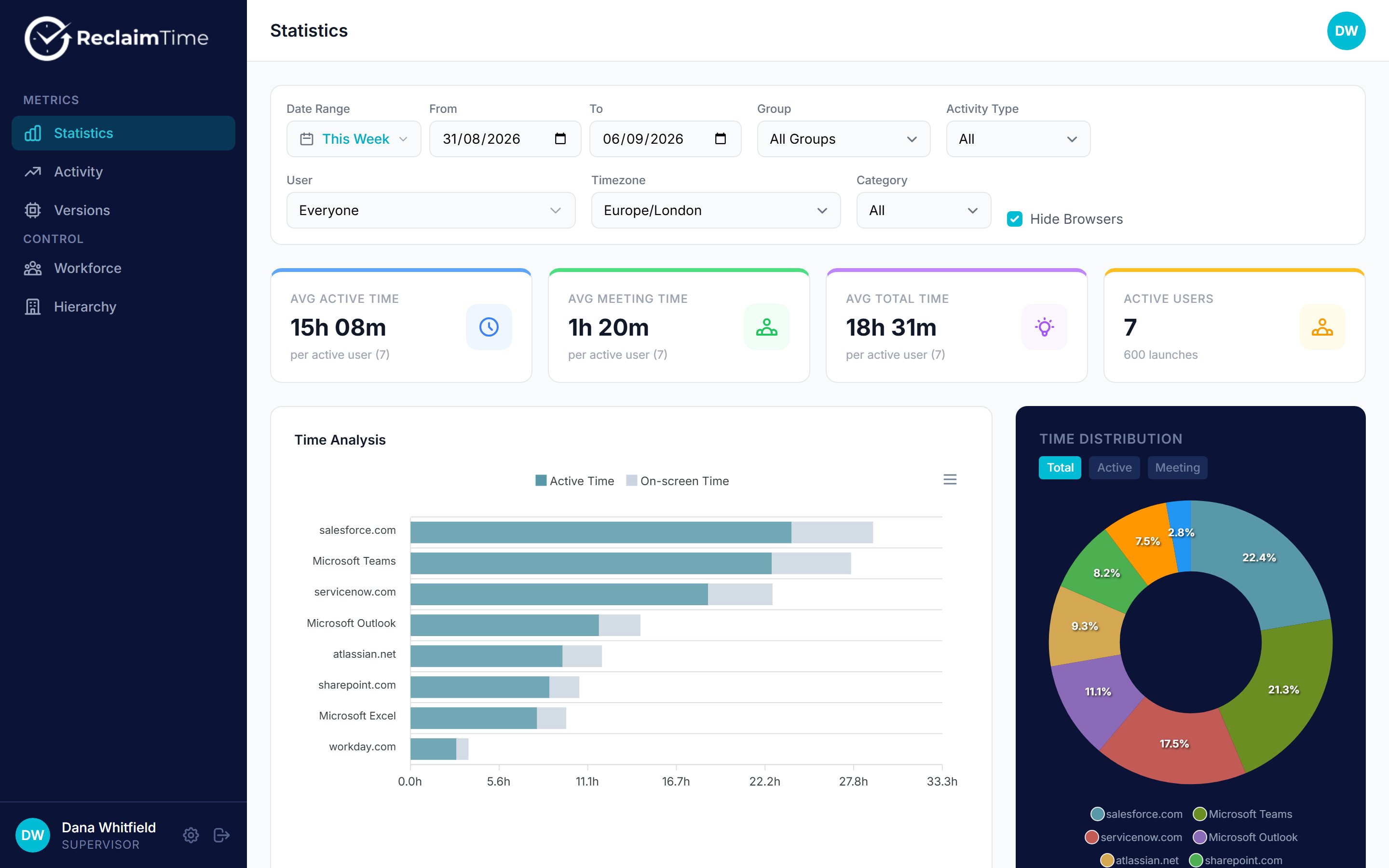
Statistics for one supervisor's teams, This Week selected
Below them, Time Analysis ranks the applications and websites your teams spent the most time on, and Time Distribution shows the same thing as a share of the total.
Who has not sent data
Activity answers “is everyone’s app working” in one screen. It lists each person with the first and last activity in the period.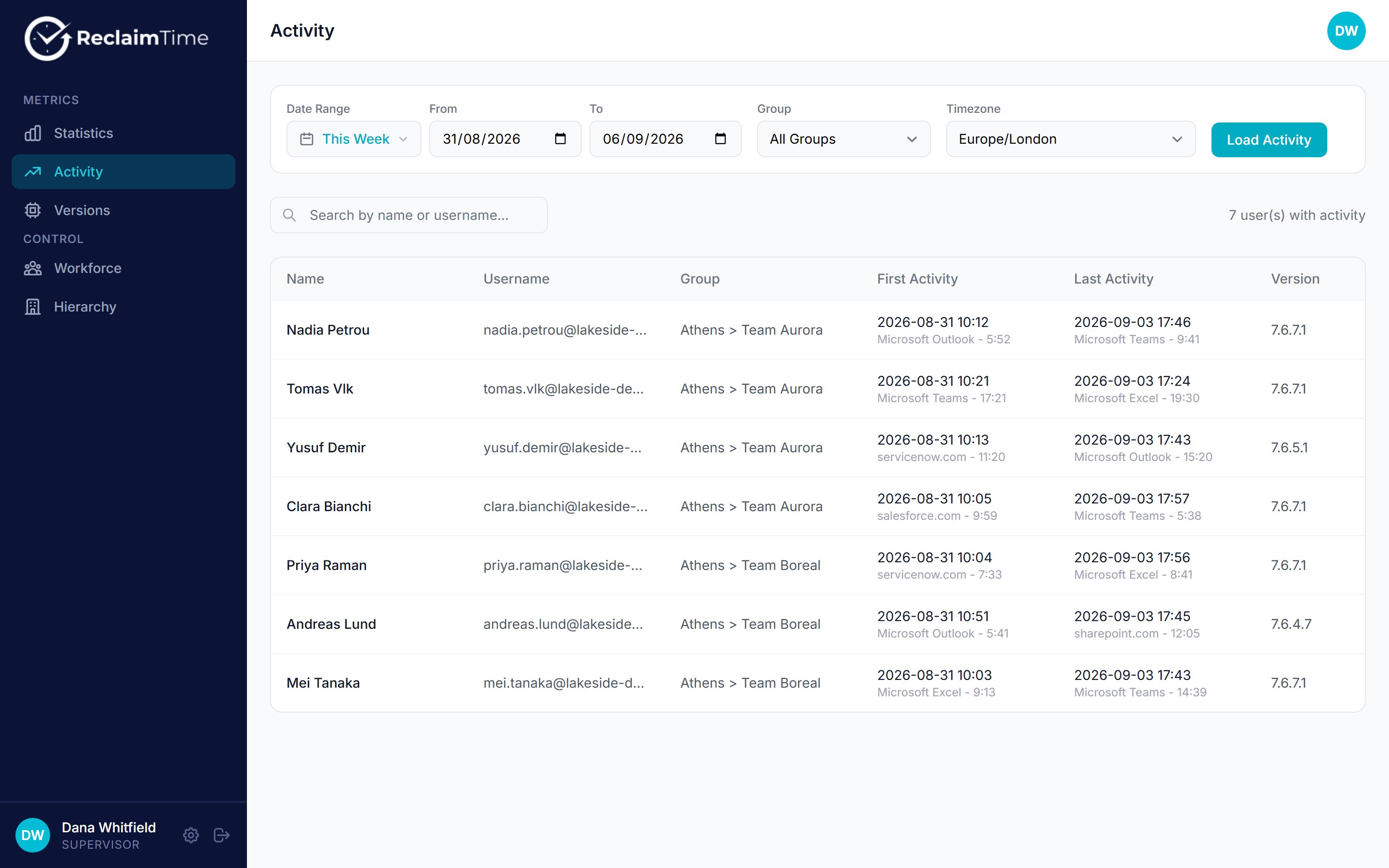
The Activity page, one row per person for the selected period
- They were not at work. Leave, sickness, training.
- The machine was replaced and the client was not installed on the new one.
- The client cannot sign in. The employee sees a dialog on their machine saying single sign-on failed. Ask them for a screenshot of it and send that to your administrator. See First login and SSO.
Data is not instant. The client uploads a session about a minute after it starts and updates it every couple of minutes, and the dashboard hides anything less than 15 minutes old. Somebody who started work 10 minutes ago will not be here yet. Do not chase anyone before lunchtime on the strength of a morning gap.
Look at one person
On Statistics, change User from Everyone to the person you want. Everything on the page then describes only them, for the same date range. This is the view for a one to one: what they spent time in, how much of it was meetings, and how that compares with the team average you just looked at.Get the list out
Two exports, depending on what you need.
Both open in Excel. The Versions CSV is the quickest way to answer “who in my team is actually using this”, because you can sort it by the last seen column.
What your team can and cannot see
Worth knowing, because you will be asked.- The application is normally locked, so there is nothing for an employee to open, no settings and no history to look at.
- It records the application, the website, the window title and how long each was in use. It does not record what was typed, and it does not take screenshots.
- Personal browsing that is not on the organisation’s work list is recorded without their name attached, so it counts towards team totals but is not traceable to a person.
- Nothing is recorded outside the working hours set for the organisation or for that person.
Where to get help
Checked against ReclaimTime client 8.0.0.9 and dashboard V3 on 5 September 2026.