

What the client sends
At startup the client builds one identifier from Windows and sends it to the backend.
The identifier is lowercased before it is sent. Case in Windows makes no difference.
The user principal name is what
whoami /upn returns on the machine. It often matches the person’s email address, but it does not have to. When a login fails, that difference is usually the reason.What the backend matches on
The backend looks for exactly one account where SSO is enabled and any one of these matches the identifier:- The account’s username
- The account’s Windows username field
- The account’s email
What the employee sees
In the default locked configuration there is no login window. A single status dialog appears, titled ReclaimTime and the installed version number, and closes itself five seconds after a successful sign-in. While it is trying:Single Sign-On Pending Username:When it works:DOMAIN\usernameEmail:firstname.lastname@example.comAttempting to connect…
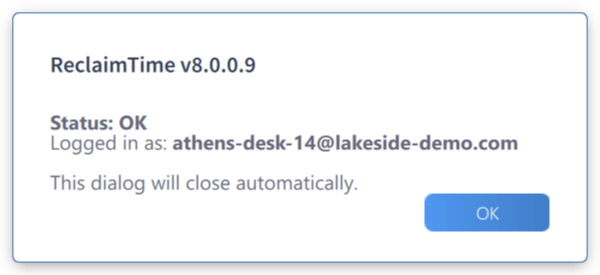
The sign-on dialog after a successful sign-in. It closes itself after five seconds.
Single Sign-On Failed! Reason:The two lines the administrator needs are Windows Username and Windows Email. The email line only appears when Windows supplies a user principal name. A screenshot of this dialog is all a helpdesk ticket needs to contain.the errorWindows Username:DOMAIN\usernameWindows Email:firstname.lastname@example.comPlease provide the above details to your System Administrator for assistance.
What the messages mean
There is a third message that is not a sign-on failure at all. The account signed in correctly, but the organisation it belongs to has no licence:
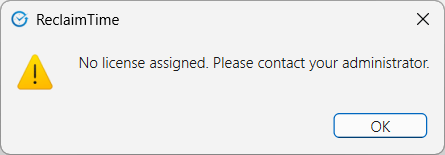
Sign-in succeeded, but the organisation has no licence assigned
The client keeps trying
The client does not give up after a failed sign-in, and the employee does not need to do anything once the account is fixed.
So the sequence for a helpdesk is: create or correct the account, then wait. Within five minutes the client signs in on its own and the person appears in the dashboard. There is no need to restart the client or the machine, and no need to reinstall.
A person who has just been created will not show activity immediately even after a successful sign-in. The client uploads a session for the first time after about a minute of visible time, and the dashboard hides rows younger than 15 minutes, so allow up to 20 minutes before treating a new user as broken.
Checklist for a user who never appears
- Ask for a screenshot of the sign-on dialog. It gives you the exact Windows username and email the machine is sending.
- Find the account in Workforce. If there is none, create it. See Accounts.
- Check that SSO is ticked.
- Check that the account’s email, or its Windows username field, matches what the dialog showed.
- Check that the account has an organisation and a role of Standard.
- Wait five minutes, then look at the Versions page. The person moves off Never seen as soon as the client signs in.
Related tasks
Checked against ReclaimTime client 8.0.0.9 and dashboard V3 on 5 September 2026.